
Scheduling
Content scheduling and temporal display control
TelemetryOS playlist scheduling controls when pages display based on time, day, and date constraints. Scheduling supports temporal content patterns including closure messages, time-specific content, and day-based menu variations.
Playlist Page Scheduling
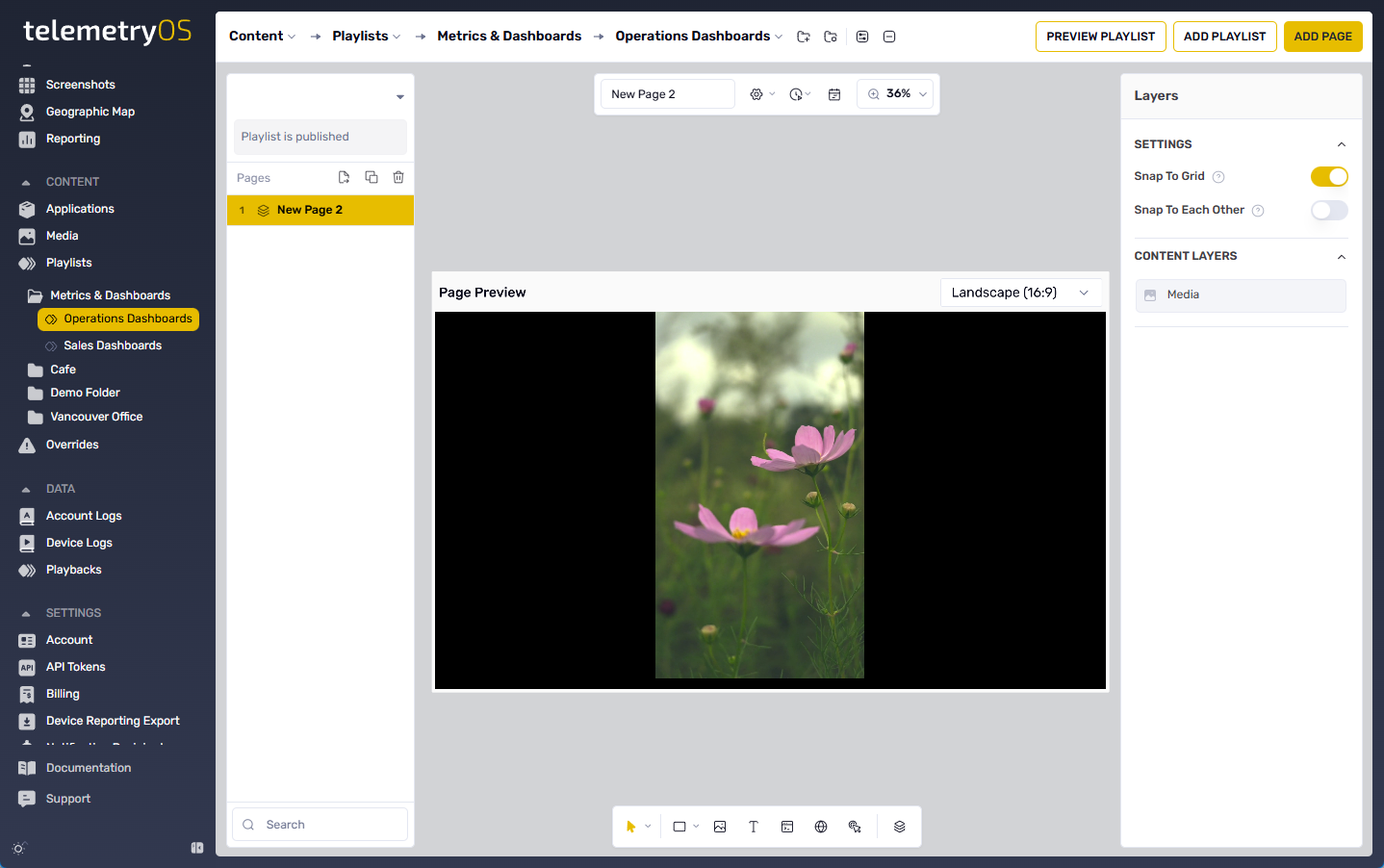
Playlist page scheduling is accessible through the Page Schedule tab on the upper toolbar after page selection.
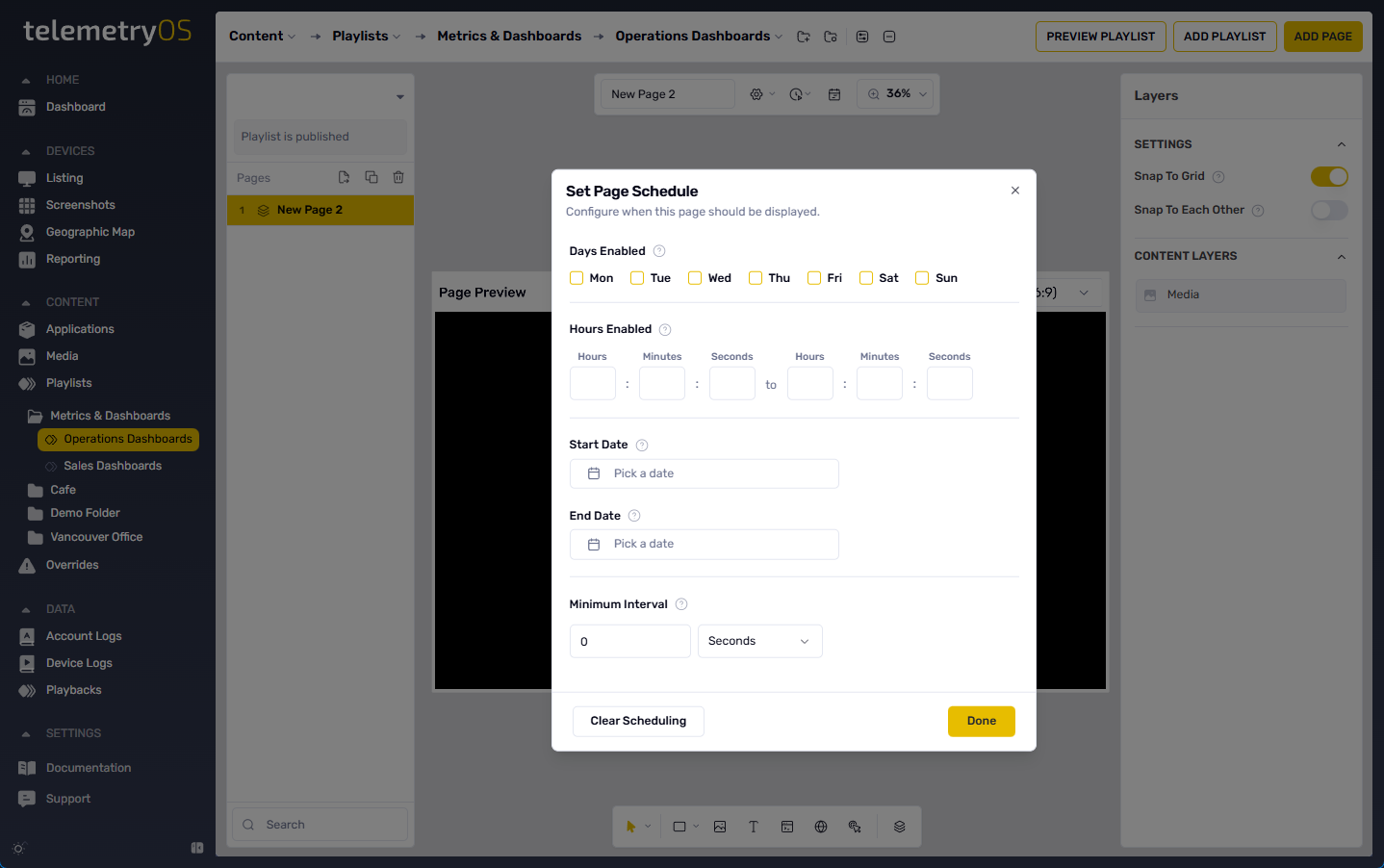
The scheduling dialog presents configuration options for page display control.
Scheduling Parameters
| Parameter | Function | Use Case |
|---|---|---|
| Days enabled | Specifies display days (any combination) | Weekday-only menus, weekend content |
| Hours enabled | Sets time frame for playback | Business hours content, after-hours messaging |
| Start and end dates | Defines date range for display | Seasonal content, promotions, time-limited announcements |
Minimum Interval defines the minimum time that must pass between page showings. For example, a 5-minute interval with a 3-minute playlist cycle causes the system to skip the page until the full 5-minute interval elapses.
Scheduling settings application subjects the page to configured time and date constraints. Pages without scheduling options play normally without restrictions.
Scheduled pages display calendar or clock icons in the page menu. Calendar icons indicate day-specific scheduling; clock icons indicate time-specific scheduling.
Scheduling Feature BehaviorPage scheduling defines time periods during which pages are eligible for display, not exact start times. Playlists cycle through pages in order, checking scheduling permissions at each position in the sequence.
Scheduling Mechanics
The scheduling system defines time periods for page eligibility rather than triggering pages at exact times. Playlists cycle through pages in established order, verifying each page's scheduling permissions upon reaching that sequence position.
Practical Example
A playlist contains four pages with 60-second durations. A fifth page schedules for 08:00 to 08:01. If Page 1 plays at 8:00, the player completes its cycle through Pages 1, 2, 3, and 4 before reaching Page 5. This progression concludes at 08:02, after Page 5's scheduled window closes, preventing its display.
The system supports scheduling multiple pages for specific days or within defined time frames. These pages do not initiate simultaneously—they remain subject to sequential playlist order and individual scheduling constraints.
Common Gotchas
- Pages do not start exactly at the schedule timestamp; playback advances in order.
- Minimum Interval can defer a page until the threshold has elapsed.
- Leaving all scheduling fields blank plays the page normally.
Best Practices
- Keep page durations short when using narrow schedule windows.
- Prefer schedule windows longer than one full playlist cycle.
Recurring Scheduling Architecture
Recurring scheduling controls complex temporal patterns through week-based and monthly recurrence rules:
| Recurrence Type | Configuration | Use Case |
|---|---|---|
| Week Recurrence | Set Specific Weeks (granular weekly patterns) | Alternating week content, bi-weekly rotation |
| Repeat Monthly On | Numbered period (1-6) for week position in month | First Monday content, third Friday updates |
Configuration Parameters:
- Days Enabled: Days when content is eligible for display
- Set Specific Weeks: Granular control over weekly patterns
- Repeat Monthly On: Week position within month (1st-6th)
Recurring scheduling options enable sophisticated content management where pages display on specific days of designated weeks in predetermined order. The system maintains sequential playlist integrity while respecting complex temporal constraints.
Comprehensive scheduling features manage playlists and pages in TelemetryOS, ensuring content displays at needed times and appropriate days. The combination of basic scheduling and advanced recurring options provides flexibility for simple time-based requirements and complex cyclical content strategies.
Updated 10 months ago