
Getting Started
Complete guide to deploying TelemetryOS from first screen to production scale
Getting Started with TelemetryOS
This guide shows how to get a screen live quickly and how to grow from a small pilot to a reliable, scalable deployment. It favors plain language and simple steps so anyone on the team can follow along.
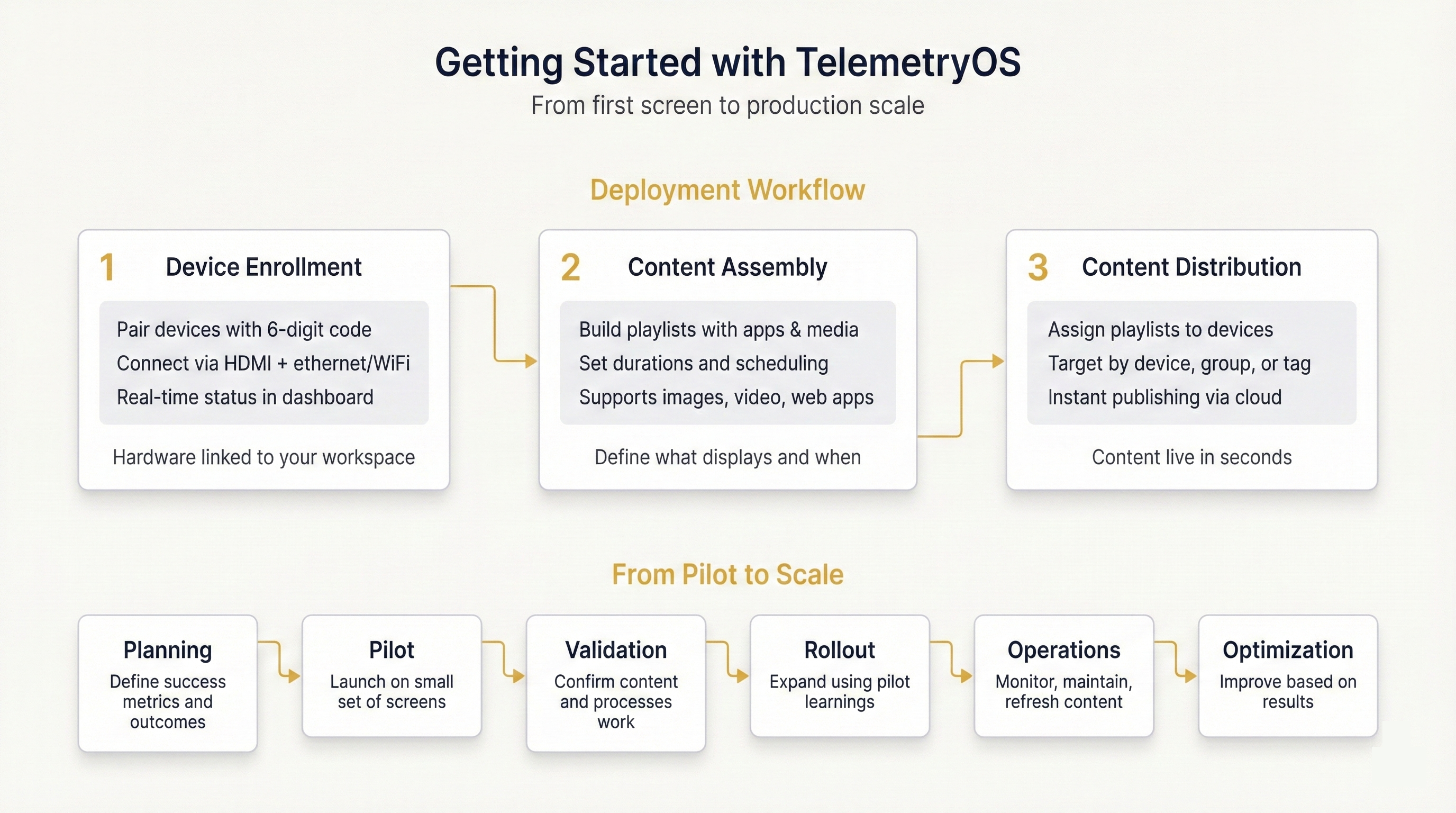
Deployment Workflow
TelemetryOS deployment consists of three core phases: device enrollment, content assembly, and content distribution. The platform requires an account (available at studio.telemetryos.com) and TelemetryOS-compatible hardware (Node Pro or Node Mini), with hardware ordering accessible through the dashboard interface.
Device Enrollment
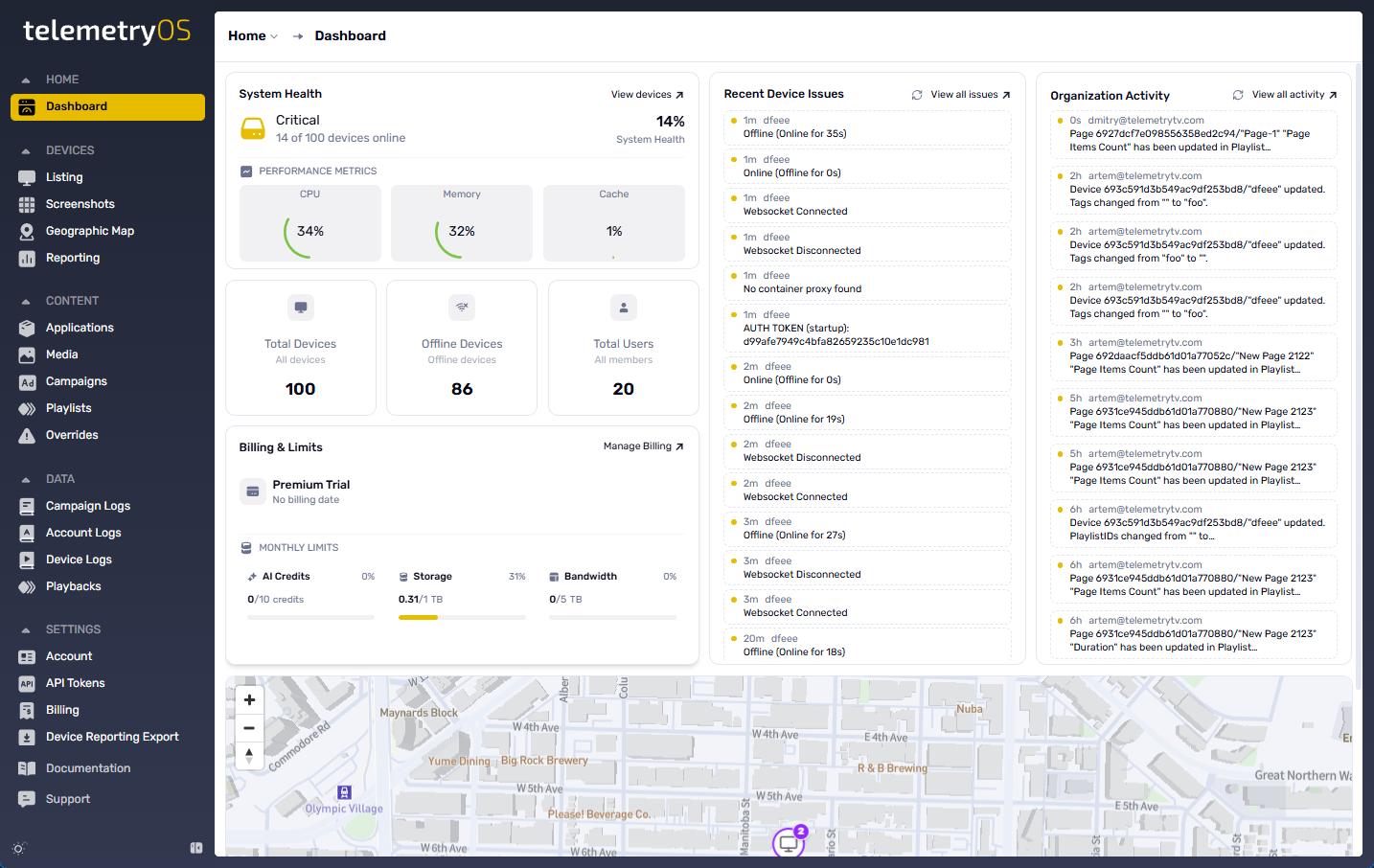
Devices connect to TelemetryOS accounts through pairing codes—unique six-digit identifiers displayed when devices initialize. Pairing establishes the link between physical hardware and specific TelemetryOS workspaces, enabling centralized management and content distribution. Hardware connects via HDMI for display output and ethernet/WiFi for network connectivity. Once paired, devices maintain persistent connections and appear in device management interfaces with real-time status indicators (online/offline, current content, system health).
Content Assembly
Content exists as playlists—ordered collections of applications, media assets, and web resources. Playlists support pre-built applications (weather displays, clocks, news feeds, dashboards), uploaded media (images, videos in JPG/PNG/MP4 formats), and custom web applications. Each playlist item includes duration settings, scheduling rules, and playback sequencing that determines runtime behavior. Content assembly focuses on what displays and when, independent of which devices receive the content.
Content Distribution
Content assignment links playlists to enrolled devices, establishing what-plays-where relationships. Assignments support individual devices, device groups, or tag-based targeting for flexible content routing. Once assigned, content publishes instantly—devices receive updates within seconds through persistent connections to TelemetryOS services. Deployed content loops continuously according to playlist configuration, with devices autonomously managing playback, caching, and schedule adherence without manual intervention.
Advanced Layouts
Zone-based layouts enable multi-region screen compositions where content occupies distinct screen areas simultaneously. Common zone patterns include sidebars (primary content + supplementary information), headers/footers (full-width bands with main content), and L-shapes (corner regions with main content). Zone architecture separates primary content from supporting elements (clocks, weather, logos, status indicators), enabling professional layouts without custom application development.
Web application integration enables live external content display—dashboards, presentations, data visualizations, or web-based tools. Configurable refresh intervals ensure dynamic content updates, with refresh rates matching content change frequencies (frequent updates for real-time data, infrequent for static presentations).
Content Scheduling
Playlist items support temporal scheduling controlling when content appears. Scheduling dimensions include:
| Setting | Example use case |
|---|---|
| Daily schedule | Breakfast menu 6am–11am |
| Day of week | Weekend specials Sat–Sun |
| Date range | Holiday campaign Dec 1–25 |
| Priority override | Emergency announcements |
Monitoring deployments
The device management interface shows real-time online status, current playback state, and any active alerts for each screen. Configure notification preferences to receive alerts via email, dashboard notifications, or webhooks when devices go offline or content playback fails.
From Pilot to Scale
Most successful teams move through a few simple phases:
- Planning: define what success looks like and how to measure it.
- Pilot: launch on a small set of screens to learn quickly.
- Validation: confirm the content and operational processes work as intended.
- Rollout: expand confidently using what you learned in the pilot.
- Operations: monitor, maintain, and keep content fresh.
- Optimization: improve based on results and feedback.
Plan for success
Decide on a small set of outcomes that matter:
- Business: sales lift, dwell time, conversions.
- Operations: content freshness, update frequency.
- Reliability: uptime and error rates that meet requirements.
- Engagement: interactions or attention time for kiosks.
Understand the basics of the environment
- Network: stable internet so devices can receive updates and sync content. Local caching reduces ongoing bandwidth.
- Power and placement: reliable power, appropriate mounting, and ventilation around devices.
- Security and access: single sign‑on (if needed), clear roles and permissions, and basic audit practices.
Choose and order hardware
Match the device setup to the job:
- Standard signage: one device per screen.
- Video walls: one device can drive multiple displays (plan counts accordingly).
- Interactive kiosks: touch screens and any peripherals, plus a small pool of spares.
Dashboard ordering supports common accessories (HDMI and network cables, mounting hardware, surge protection).
Device Provisioning
Zero‑touch enrollment accelerates large-scale deployments through automated device configuration. Provisioning methods include QR code scanning (mobile-based), USB drive pre-configuration (offline deployment), or automated network enrollment (enterprise integration). Method selection depends on deployment scale, internet availability during installation, and IT policy requirements. Provisioning embeds configuration into devices before account pairing, eliminating per-device interactive setup in field deployments.
Building applications over time
Start with ready‑made apps. Advanced control requirements support template customization with low‑code tools. Advanced use cases build custom apps with the TelemetryOS SDK following development guides. Real device testing before wider rollout ensures optimal results.
Keep content lightweight and high‑quality
Use formats that look great and play smoothly on screens. Guidelines:
| Content type | Recommended format | Tips |
|---|---|---|
| Images | JPEG (photos), PNG (graphics) | Aim for ~85% quality; export at display resolution |
| Videos | MP4 (H.264) | Use variable bitrate; keep file sizes reasonable |
| 4K video | MP4 (HEVC/H.265) | 15–25 Mbps works well on capable displays |
| Animations | Lottie or CSS | Prefer vector‑based for smooth playback |
Monitor and maintain
Focus on a few essentials:
- Business outcomes: are screens driving the results you expect?
- Application behavior: watch for errors or slowdowns.
- Device health: online status, basic resource usage, and temperature.
- Connectivity: confirm devices can reach the service when needed.
Notification configuration for the most important events (for example, a device offline or repeated playback failures) allows quick action without continuous dashboard monitoring.
Development Workflow
Keep the process simple: make changes, deploy to a small set of test devices, verify, and roll out more broadly. Over time, adopt a staged rollout to catch issues early and iterate safely.
Next Steps
Continue with:
- Planning & Deployment — strategic deployment patterns and checklists
- Platform Architecture — deep technical understanding
- SDK Reference — complete development documentation
- API Documentation — platform integration guide
Updated 7 months ago