
Interactive Button Menu
Interactive button menu for kiosk and touchscreen navigation
TelemetryOS interactive button menus support kiosk and touchscreen devices with mouse-based device compatibility. The interactive menu enables playlist navigation through touch or mouse interaction.
Kiosk Button Configuration
Kiosk button configuration is accessed through playlist interfaces. The Add Kiosk Button option at the bottom of the screen initiates button creation.
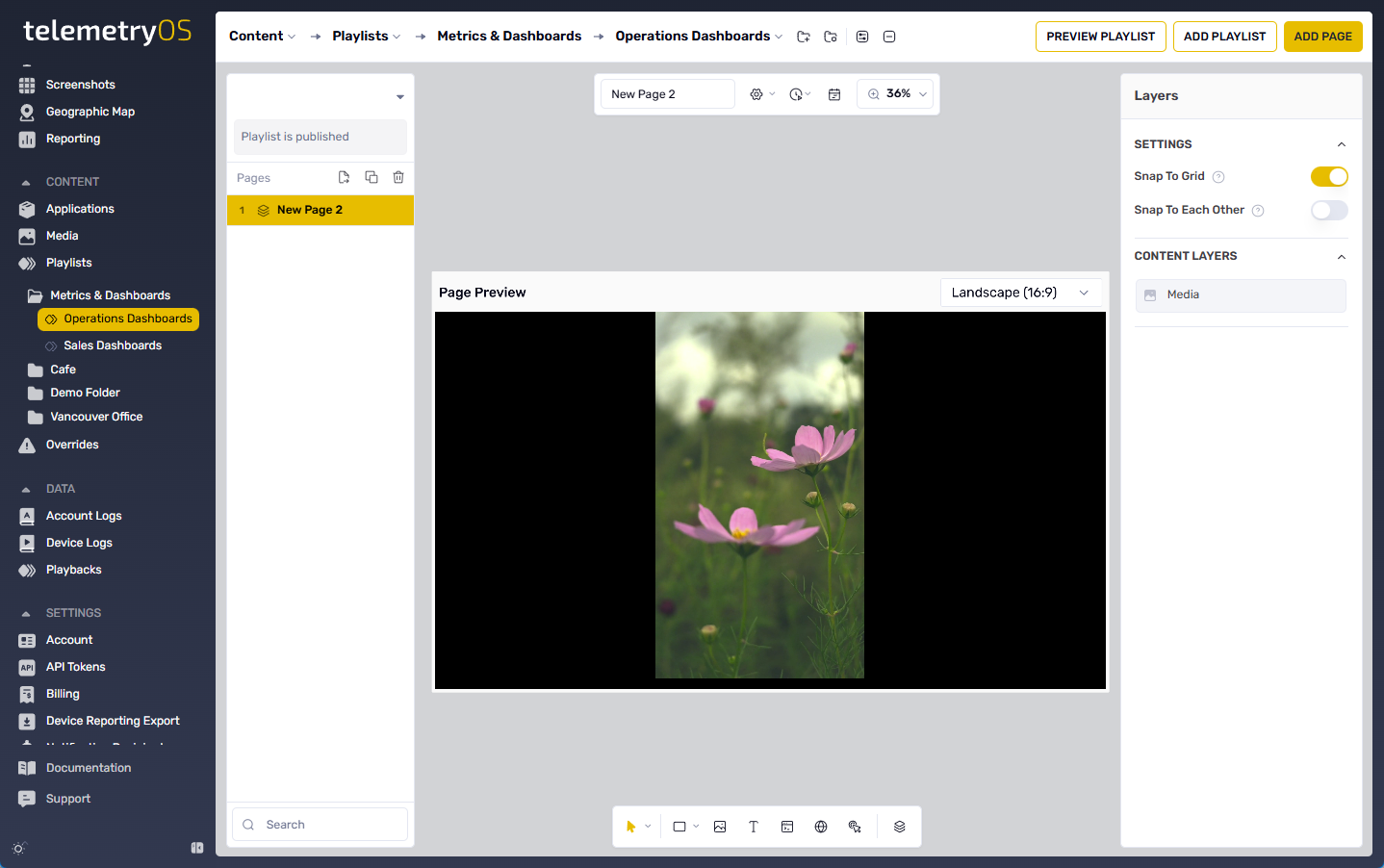
Button Settings
Kiosk Button Fields
Kiosk Content Type - Content type displayed upon button activation. Options: Page, Media, Website, or Override.
Target Page - Navigation destination for button activation. Supports any existing playlist page.
Button Type - Button display format: Text or Image. Image buttons require Button Image selection through Image Button Styling field.
Text/Image Button Styling
Text/Image Button Styling Fields
Button Text - Text content displayed on button.
Horizontal Alignment (text button only) - Horizontal text positioning: Left, Center, Right, or Justified.
Vertical Alignment (text button only) - Vertical text positioning: Top, Middle, or Bottom.
Text Color (text button only) - Text color selection from color picker or Hex/RGB code entry.
Button Fill Color (text button only) - Background fill color from color picker or Hex/RGB code entry.
Button Stroke Width (text button only) - Border width via slider or numerical entry.
Button Stroke Color (text button only) - Border stroke color from color picker or Hex/RGB code entry.
Opacity - Button transparency via slider (0 to 1 range).
Rounded Corners - Corner radius selection (0 for rectangle, 1 for fully rounded).
Button Font
Button Font Fields
Font Family (text button only) - Font type (family) for button text.
Font Size (text button only) - Button text size in pixels.
Line Height (text button only) - Text line spacing via slider control.
Positioning
Positioning Fields
Use Percent Unit - Unit toggle between pixels and percent for X and Y coordinates.
X and Y - Button placement via pixel or percentage values.
Width and Height - Button dimensions via pixel or percentage values.
Rotate - Button rotation via slider (0 to 360 degrees).
The Confirm button finalizes kiosk button creation.
Updated 10 months ago