
Using Playlists
Playlist creation and organization
Using Playlists
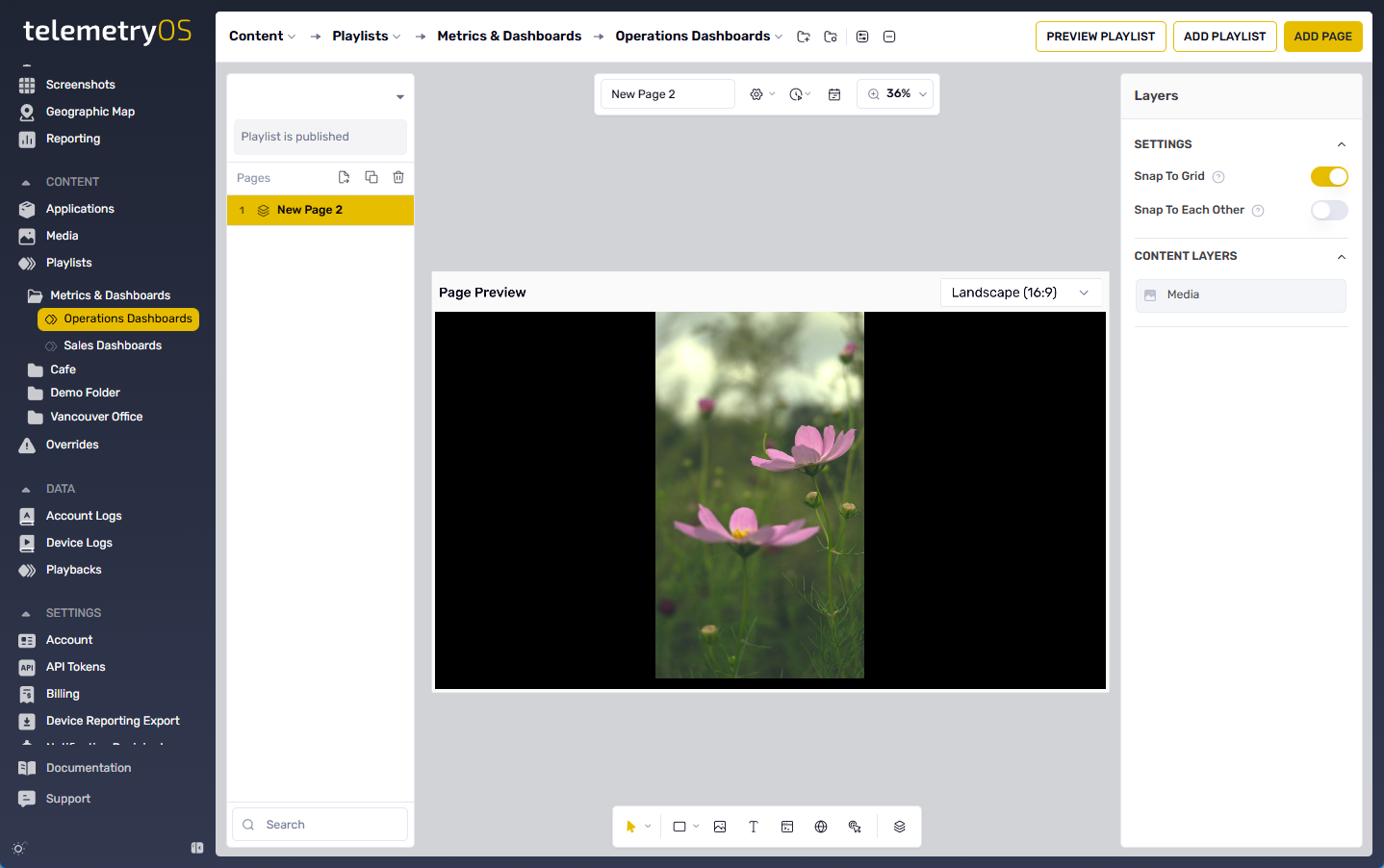
TelemetryOS playlists organize content into sequential pages with timing, transitions, and scheduling controls. The Playlist Editor manages page creation, content composition, and playlist-level settings.
Playlist Architecture
Playlists consist of:
- Pages: Individual content screens with media, applications, or web content
- Folders: Organizational hierarchies for playlist management
- Transitions: Visual effects between pages
- Scheduling: Temporal display controls for pages and content
- Shared Content: Reusable content across multiple playlists
Playlist Menu
Default Playlist
Each account includes a default playlist (marked with a heart icon) that serves as the primary content destination. The default playlist accepts content immediately upon account creation without requiring playlist creation.
Creating a New Playlist
New playlist creation requires first establishing a playlist folder to house content.
Playlist Folders
Playlist folder creation establishes organizational hierarchies for content management. Folder naming conventions identify folder purpose and contents.
The platform supports nested folder structures where folders contain other folders, enabling hierarchical organization patterns. Organization by type (advertisements, internal communications, menu boards) or location (building, floor, department) improves content discoverability and management efficiency.
User group folder permissions control which folders specific user groups access, with other folders hidden from their view. Permission configuration occurs during folder creation or through folder menu options.
Playlist creation requires name assignment and folder location specification. These parameters establish playlist identity and organizational placement within the folder hierarchy.
Playlist Options
Playlist management options control playlist behavior, organization, and presentation characteristics.
Rename: Playlist name modification updates playlist identification without affecting content or configuration.
Default Playlist: Default playlist designation (heart icon) marks a playlist as the primary content destination, affecting content creation workflows and device assignment defaults.
Move: Playlist relocation transfers playlists between folders, reorganizing content hierarchies without modifying playlist contents.
Clone: Playlist duplication creates complete playlist copies for template reuse or parallel content development. Cloning behavior varies based on shared content handling (see Cloning section below).
Default Animation Transition: Page transition animation selection controls visual effects between pages. Transition families include Fade (Crossfade, Fade Left/Right/Top/Bottom), Move (Left/Right/Top/Bottom), Ease (Left/Right/Top/Bottom), Scale Down (To Left/Right/Top/Bottom), Scale Up (To Left/Right/Top/Bottom), Glue (Left/Right/Top/Bottom), Push (Left/Right/Top/Bottom), Fold (Left/Right/Top/Bottom), or None for instant page changes.
Randomize Pages: Random page playback shuffles page display order within playlists. Randomization applies to pages only—media items within pages play sequentially according to their configured order.
Advertising: Advertising activation enables ad campaign integration within playlist playback, inserting advertising content according to campaign configuration and targeting rules.
Cloning a Playlist
Playlist cloning duplicates playlists with configurable shared content handling:
| Clone Option | Behavior | Use Case |
|---|---|---|
| Copy Shared Contents OFF (default) | References existing shared content; edits affect all playlists | Template reuse with centrally managed content |
| Copy Shared Contents ON | Creates new copies of all shared content; edits isolated to this playlist | Independent content development from template |
Clone Configuration:
- Folder: Destination folder for cloned playlist
- Playlist Name: Identifier distinguishing clone from original
- Copy Shared Contents: Shared content handling (see table above)
Playlist Play Order
Playlist execution follows sequential top-to-bottom order according to interface arrangement. Play order modification uses drag-and-drop interfaces, enabling page repositioning to desired sequence positions.
Updated 7 months ago